
Installation Guide
Follow the instructions below to install and configure the MEGA History App.
- Click the following link to install the package in your Salesforce Instance.
Follow the on-screen prompts and select Install for “Install for Admins Only”.
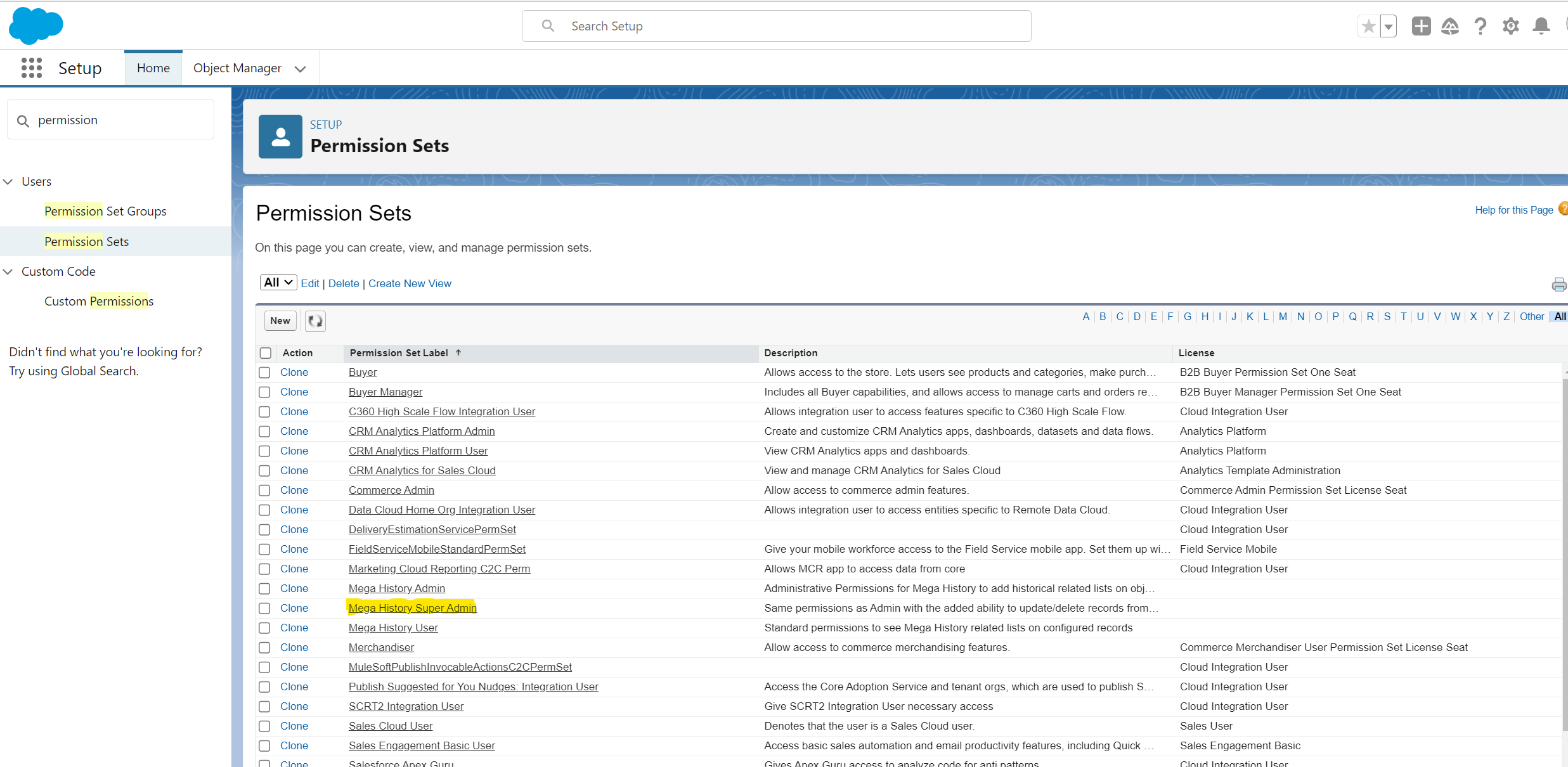
2. Assign yourself the Mega History Admin or the Mega History Super Admin permission set by opening Setup and searching for Permission Sets in the Quick Find box.
3. Once you have selected one of the Mega History permission sets, click Manage Assignments to select which users should have User privileges, Admin privileges, or Super Admin privileges.
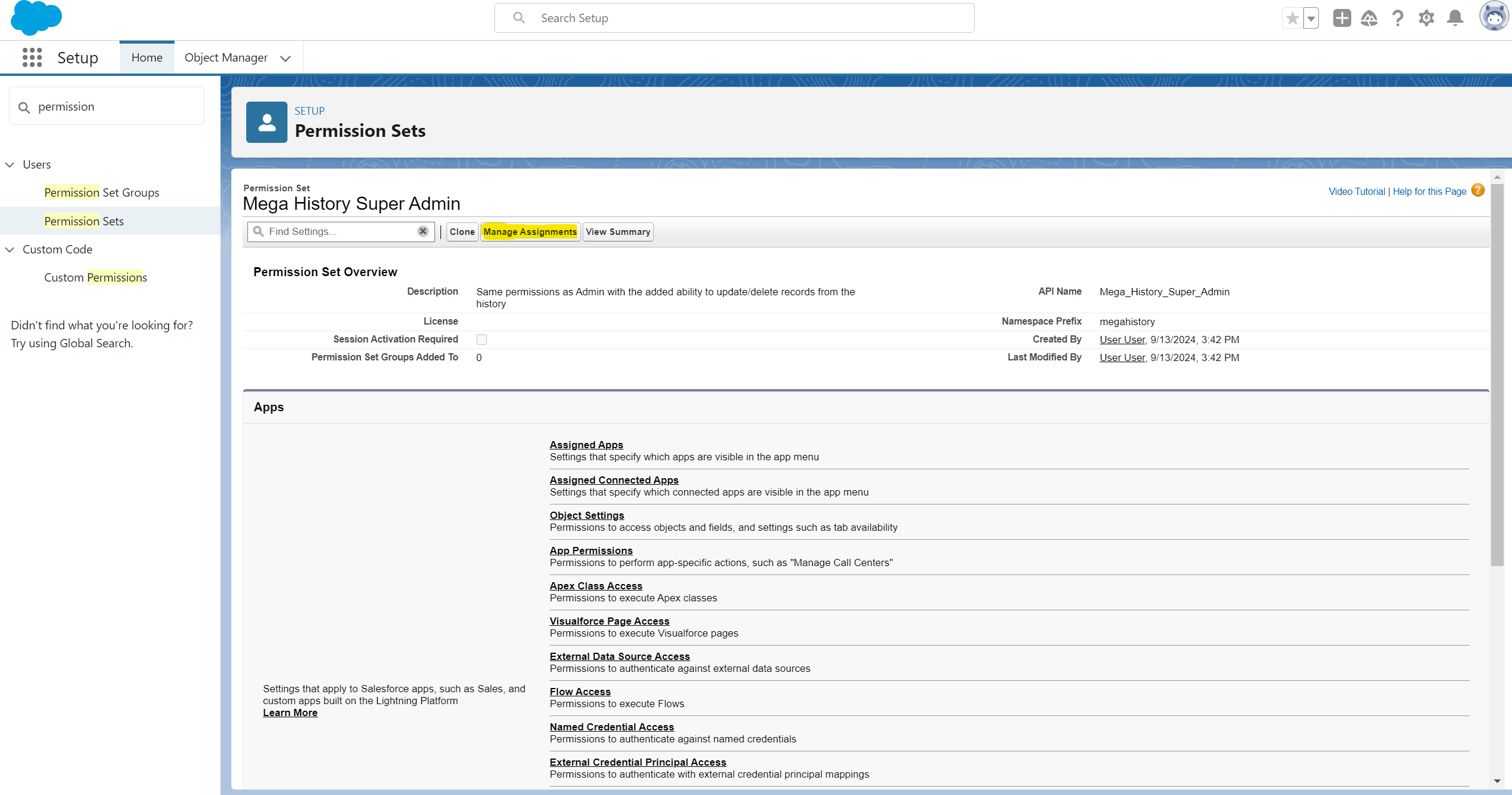
Below is a summary of the permission sets available:
- MEGA History User
- Ability to see MEGA History on configured Lightnig Record Pages.
- Most common permissions to see both standard field history and custom field/record history.
- MEGA History Admin
- Ability to see MEGA History on configured Lightnig Record Pages.
- Ability to configure MEGA History via the MEGA History App.
- Used by administrative personnel to configure what fields and objects should be tracked by MEGA History.
- MEGA History Super Admin
- Ability to see MEGA History on configured Lightnig Record Pages.
- Ability to configure MEGA History via the MEGA History App.
- Ability to create, update, and delete MEGA History Records.
- Used by System Administrators to manipulate custom history records, perform data loads, and archive data.
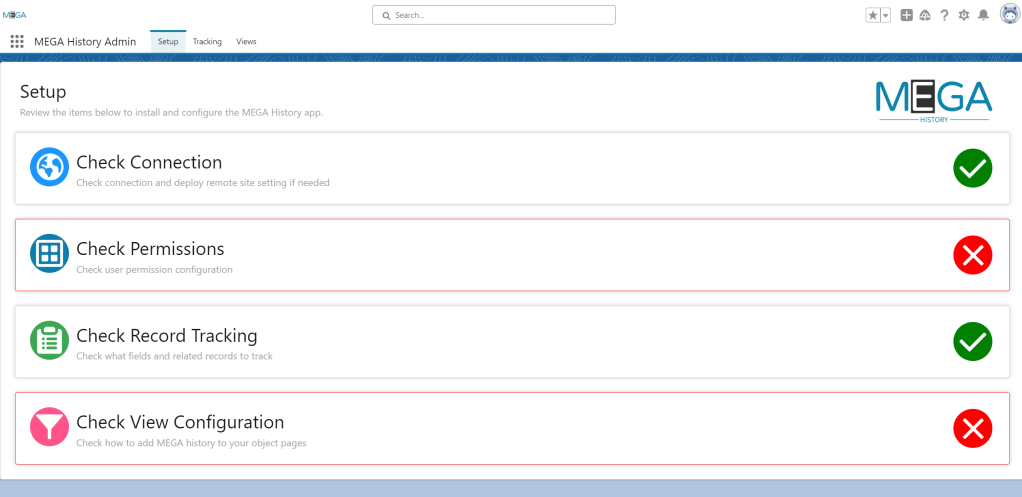
4. Open the MEGA History Admin App in the Salesforce App Launcher.

5. Follow the on-screen guidance to setup and configure the MEGA History App in your Salesforce environment.
 MEGA Tools